
Ball In Court: Managing Your Assigned Work
This article explains the Ball In Court page in Buildend, which is your central view for tracking all assigned work across projects that require your attention.
Table of Contents:
Before You Start
This page is available to all users of our platform. At a minimum, users should have:
- An active Buildend account
- Appropriate project access permissions
Overview
The Ball In Court page is designed to help users stay on top of everything they are responsible for across Buildend.
Instead of checking multiple projects or workflows individually, this page brings all assigned items into a single, unified view. It includes both individual tasks and workflow-related items that require a response or action from the assigned user.
- See all assigned items in one place
- Identify new assignments
- Track outstanding work
- Prioritize urgent actions
- Clarity on what requires action next
- Keep workflows moving forward without delays
What Appears in Ball In Court
The Ball In Court page summarizes all items that currently require your action, including:
- Assigned Tasks
- Any Workflow steps requiring response or approval, organized by Module
- This could be RFIs requiring responses, Purchase Orders requiring approval, etc.
Not seeing anything in your Ball In Court? This means there are no tasks currently requiring your action — either nothing has been assigned to you or you’ve completed all your work 🎉.
How Items are Organized
Each action item appears within an organized section, categorized by the function.
- The types of action items you will see often depend on your Project Role or Job Title
- Project Managers might see multiple sections with required approvals due to their wide scope of responsibility
- A Site Superintendent may only be shown one section with Tasks specific to the job site
In this example we see RFIs and Tasks.
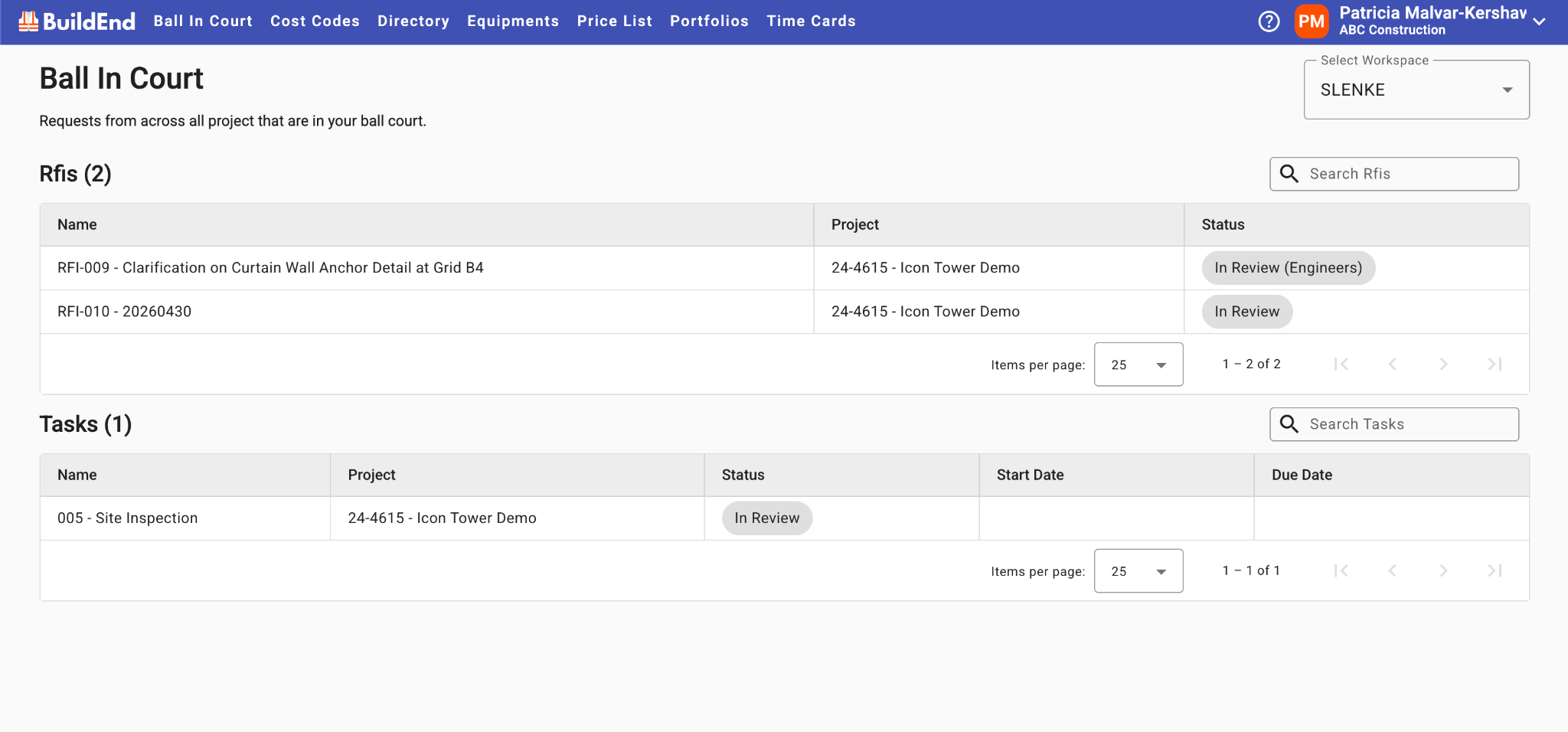
Note: A section will only appear if you have assigned tasks or workflow steps within that category. For example, if there are no Purchase Orders assigned to you to approve (or that's not something you'll ever do), then the Purchase Orders section will not be shown.
Best Practices
To get the most out of Ball In Court:
- Check it daily to stay on top of new assignments
- Prioritize items based on urgency and project impact
- Clear completed Notifications promptly to keep your Task list current
- Use it as your primary starting point for assigned work
- Avoid relying solely on individual project views for task tracking