
Managing Your Notification Preferences
Control which email notifications you receive from Buildend based on your activity and role.
Table of Contents
Understanding Notifications
What Are Notifications?
Notifications are automated email messages triggered by activity in Buildend.
When enabled, Buildend sends an email to the address associated with your user account whenever a selected event or activity occurs.
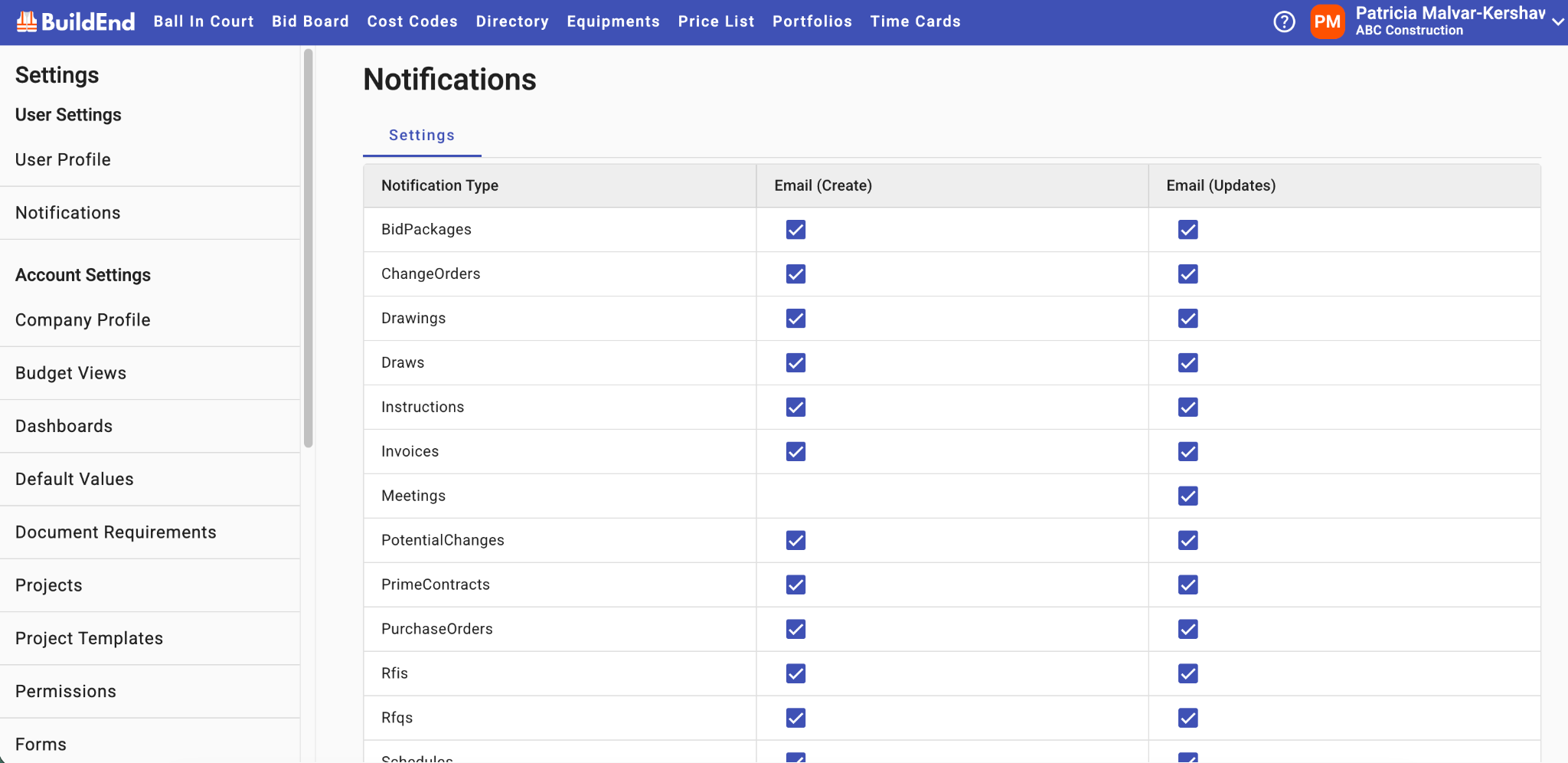
You can set notifications for the following types of activity:
- New activity (e.g. an RFI is created)
- Records are updated (e.g. a revised drawing set is uploaded)
- Workflow status changes (e.g. a Change Order has been approved)
- Task completion
- Activity on items you are involved in, informational (e.g. an invoice is submitted)
For each item in the list, you can choose to receive notifications when a new item is created (Create) and/or when an existing item is updated (Update).
🟡 Important: Notifications for workflow assignments cannot be disabled. If a workflow step requires your review, approval, or action, Buildend will always notify you when the item is assigned.
Who Receives Notifications?
Notification settings are user-specific. This means each user can independently manage their own notification preferences. Changes made apply only to your account and do not affect other users.
Why Notifications Matter
Notification emails help keep teams informed of important project and operational activity without requiring constant monitoring of the platform.
⚫ Note: All notification preferences apply to email communications only. Buildend does not currently support in-app or push notifications.
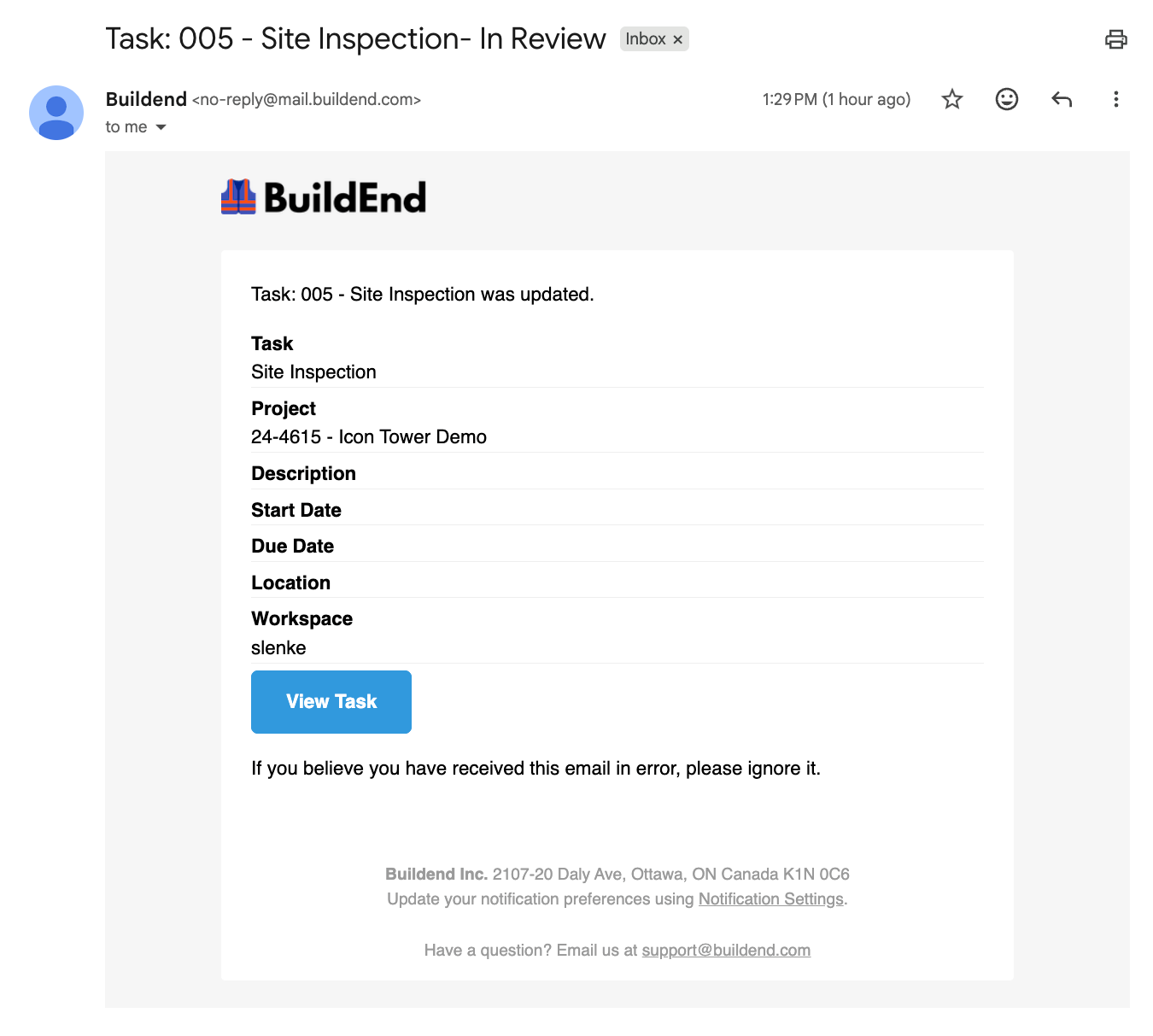
Example - Email Notification
Managing Notification Preferences
You can customize which notification emails you receive by updating your Notification Preferences.
Step-by-Step Guide
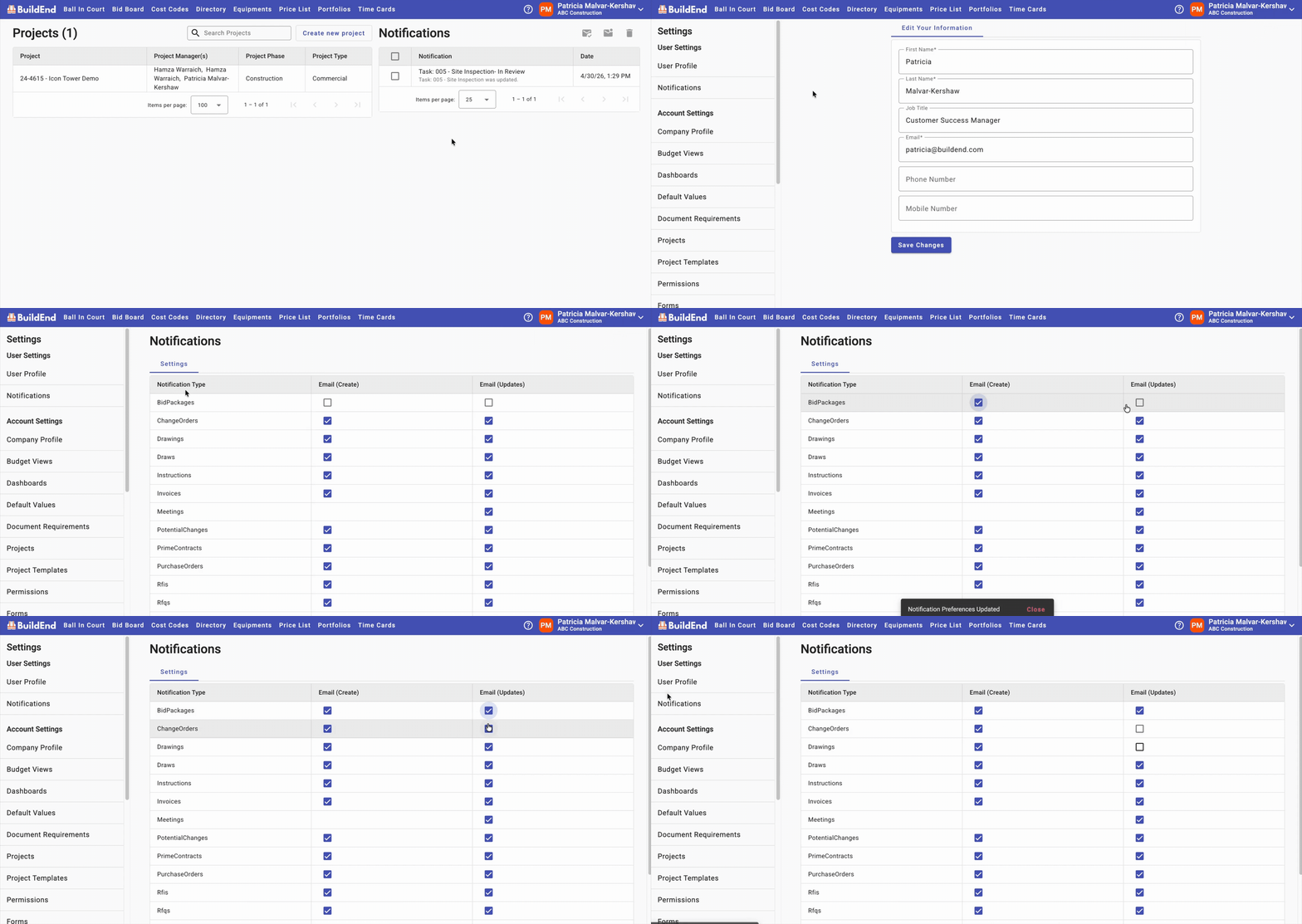
- Open the User Menu, then select Settings and go to Notifications
- In the top-right corner of Buildend, open the User menu.
- Select Settings to go to the account settings area.
- Click on Notifications in the left menu under the User Settings section. Here you’ll find a list of notification types, each representing a system item where notifications can be enabled or disabled.
- Review or update notification settings.
- Use the checkboxes to turn notifications ON or OFF for each item in the list.
- Changes are saved automatically
- The system automatically saves updates—no manual save required.
Note: even if a Notification does not have the Email option selected, all notifications will still appear under the Notifications list on the right side of your home screen.
Action Clip
Best Practices
- Enable notifications that are relevant to your role and responsibilities.
- Review your notification preferences if your responsibilities change.
- Avoid disabling important notifications that may impact project communication or awareness.
Still Need Help?
Not to worry! If you're having trouble completing these steps or something isn't working as expected, reach out to our Support Team at support@buildend.com ✌️