
Project Document Automations
Project Home > Project Settings
This article explains how Project Document Automations work in Buildend and how they automatically organize project documents based on Request Types.
Table of Contents
- Overview
- How Document Automations Work
- Request Types (Automation Triggers)
- Actions
- Automation Configuration Fields
- Key Behaviors & Rules
- Saving & Reusing Automations
Overview
Project Document Automations allow you to automatically create and organize folders in a project’s Documents area based on specific Request Types.
These automations ensure that project information such as RFIs, submittals, and form submissions are consistently stored in the correct location without requiring manual folder creation.
How Document Automations Work
Document Automations run at the project level and respond to configured Request Types.
When a Request Type event occurs, Buildend automatically:
- Creates a folder in the project’s Documents area
- Applies a predefined naming convention
- Organizes related documents into a consistent folder structure
For new events, a document folder is created automatically. For updates to existing events (such as adding additional attachments to an RFI), those files are also saved into the folder defined by the automation.
Request Types (Automation Triggers)
Document Automations can be created for the following Request Types:
- RFIs
- Submittals
- Form Submissions
- Tasks
- Instructions
- Invoices
- RFQs
- Potential Change Requests
- Change Orders
- Photos
Each Request Type is a system event tied to a specific entity and can be mapped to a folder location within the project’s Documents structure.
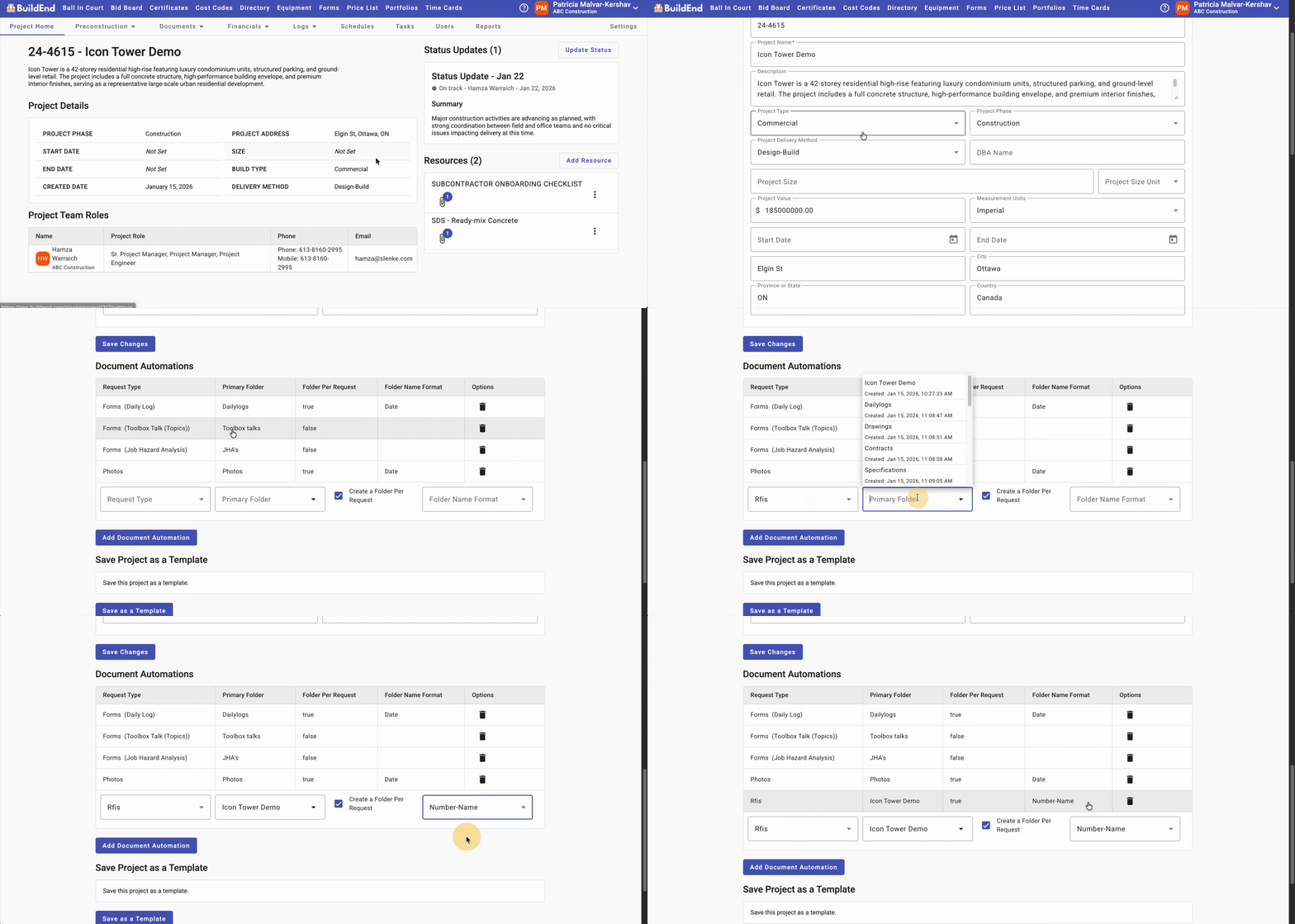
Adding a Document Automation
Step-by-Step Guide
- Navigate to the project and open Project Settings
- Open the Project Details tab and view the Document Automations section table
- Complete the automation fields in the bottom row of the table
- Click Add Document Automation to save and activate the automation
Action Clip
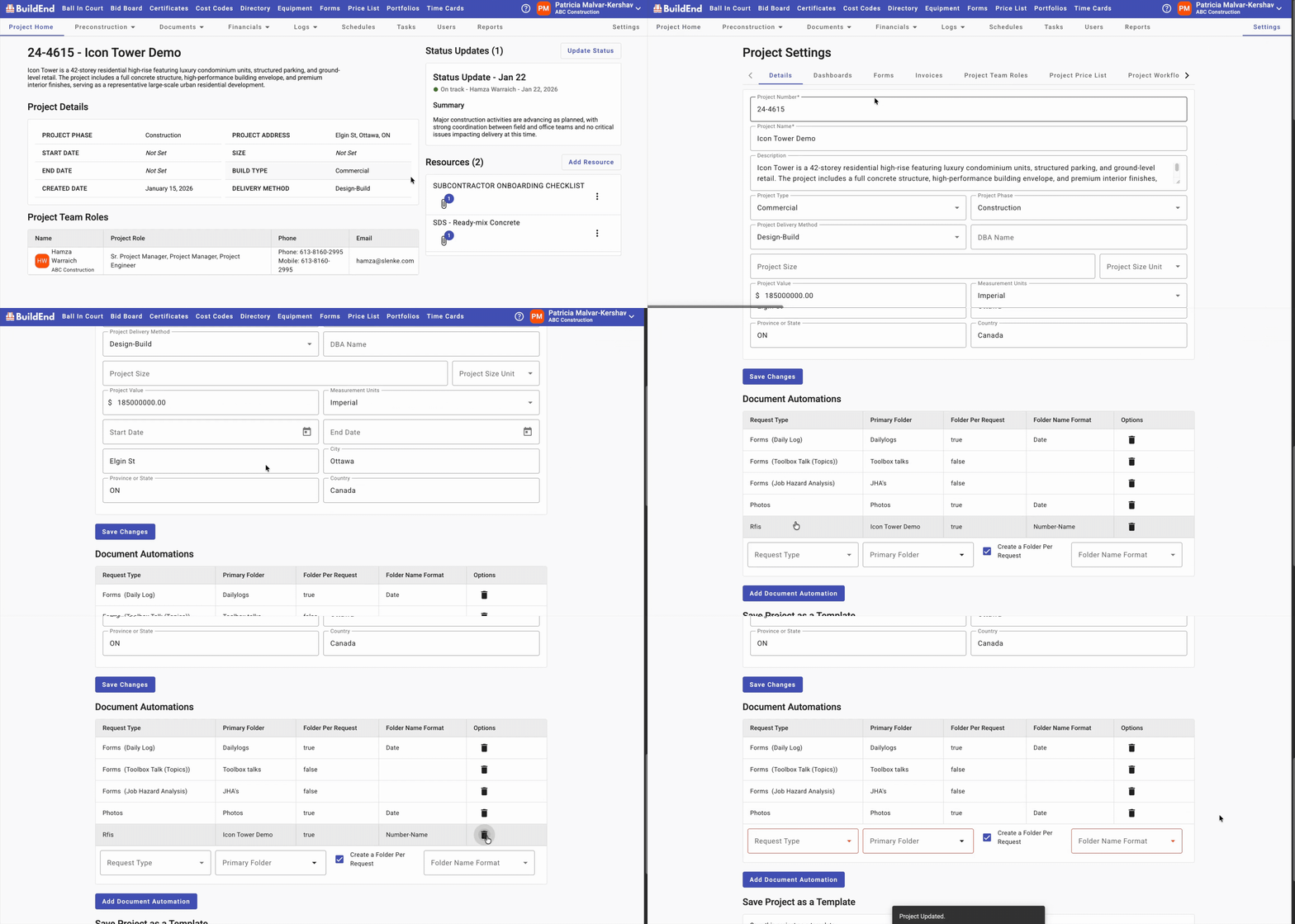
Deleting a Document Automation
Step-by-Step Guide
- Navigate to the project and open Project Settings
- Open the Project Details tab and view the Document Automations section table
- Identify the automation you want to delete
- In the Options column, click the trash icon to delete the automation.
Action Clip
Automation Configuration Fields
When setting up a Document Automation, the following fields are required:
- Request Type
- The event that triggers the automation (e.g. RFI, Submittal, Form Submission).
- If Forms are selected, another field will appear and prompt you to select the exact Form
- Primary Folder (location)
- Where these new folders will be created in the Document Management system
- Create a Folder Per Request (checkbox)
- Turn this on if you want a separate folder created for each request (e.g. each RFI gets its own folder). Leave it off if you want all documents to be stored together in the primary folder.
- Folder Naming Convention
- If the Create a Folder Per Request checkbox is turned ON, this field becomes available so you can choose how new folders are named.
- Available naming options:
- Number + Name — e.g. 01 - Slab Edge Confirmation
- Number — e.g. 01
- Name — e.g. Slab Edge Confirmation
- Form Date (m/d/yy) — e.g. 1/15/26
These fields ensure consistent document organization across project workflows.
Key Behaviors & Rules
An automation can only be created once per Request Type. If an automation already exists for a Request Type, that option will be disabled in the Request Type dropdown. To create a new automation for that Request Type, the existing automation must first be deleted.
Document Automations can be added, edited, or deleted directly within the Document Automations table in Project Settings
Note: Any changes made to a Document Automation will only apply to future events within the project. Existing documents and folders will not be updated retroactively.
Saving & Reusing Automations
Document Automations can be saved and reused by creating a Project Template that includes the configured automations.
This allows teams to standardize document structures across multiple projects without reconfiguring automations each time.
Still need help?
Not to worry! If you’re having trouble completing these steps or something isn’t working as expected, reach out to our support team at support@buildend.com ✌️