
Manage Time: Overview
Review and manage submitted time entries across your organization.
Table of Contents
Overview
Manage Time Cards provides a centralized view of submitted time entries across users, projects, and activities.
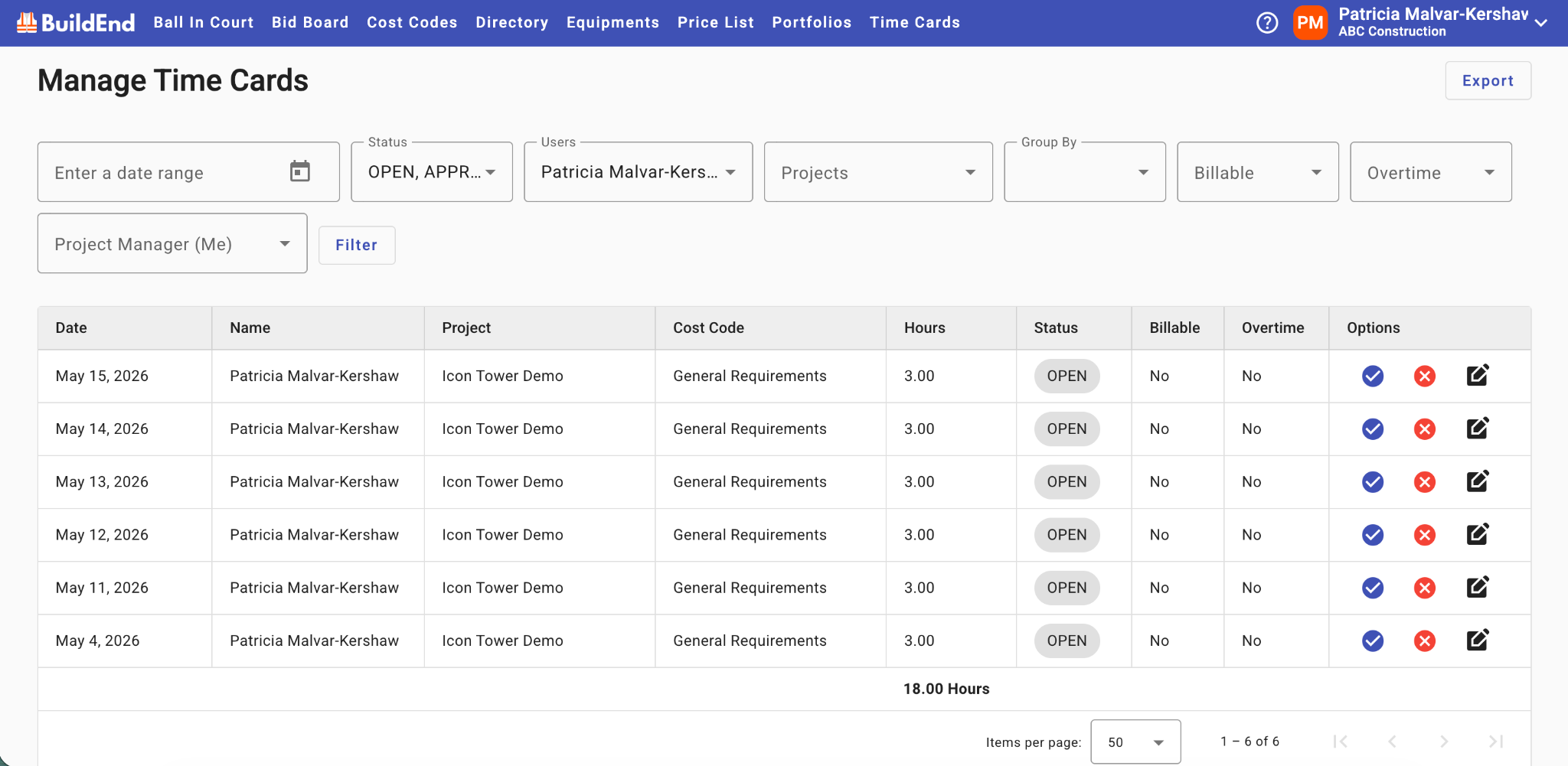
As an HR Manager, this view provides visibility into all employee time entries across projects, allowing you to review submitted time for accuracy before approval and generate payroll reports for processing.
Depending on your permissions, Manage Time Cards may allow you to:
- Review submitted time entries
- Filter and search entries
- Monitor pending approvals
- Edit or correct entries
- Approve or reject entries
- Export Time Card data
⚫ Note: Access to Manage Time Cards and available actions are controlled by your organization's Company level permissions and managed by your Buildend Administrator.
Time Entry Lifecycle
Manage Time Cards represents the second stage of the time tracking process.
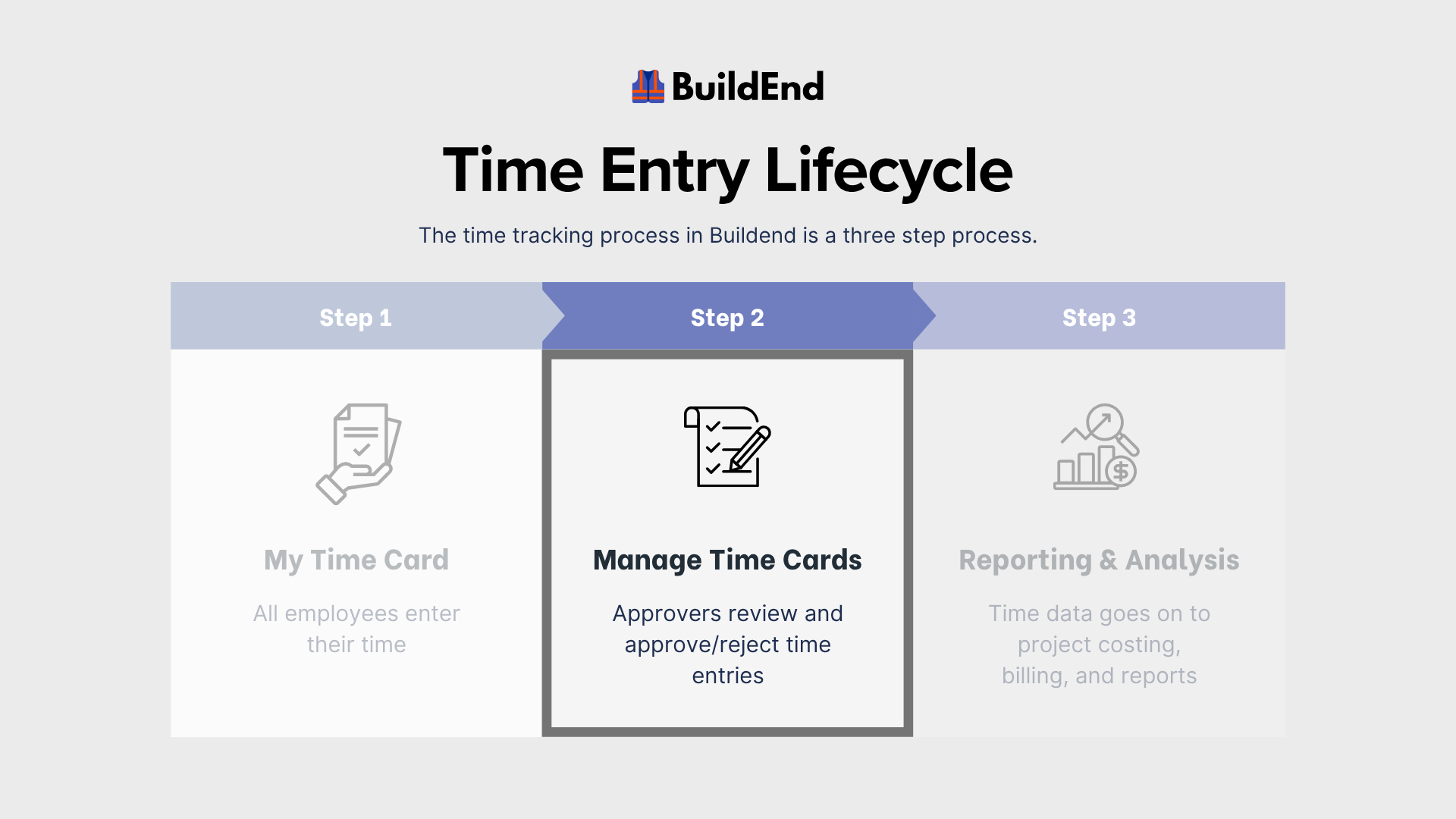
The first stage occurs in My Time Card, where users enter and submit their time. Once submitted, entries become available in Manage Time for review.
As entries move through the approval process, their status reflects their progress through the workflow.
For more information, see:
Reviewing Submitted Time
Manage Time Cards is designed to help HR Managers or Approvers review submitted time entries and determine whether they should be approved or rejected.
Before making an approval decision, thoroughly review each time entry to ensure all submitted information is accurate and complete.
Organizations may have additional review requirements as part of their internal process. Approval decisions should be based on your organization's time tracking policies and review requirements.
For step-by-step instructions, see Approving or Rejecting Team Time.
Company-Specific Workflows
Time tracking workflows may vary between organizations based on configuration and internal processes.
If you're unsure how your company uses Time Cards or if there are other steps your company requires as part of the time tracking process, please contact your Buildend Administrator.