
My Time Card: Managing Your Time Entries
Learn how to add, edit, and manage time entries in My Time Card.
Table of Contents
- My Time Card Actions (Step-By-Step Guides)
- Adding Multiple Time Entries
- Time Entry Lifecycle
- Best Practices
My Time Card Actions
From Time Cards > My Time Card, you can manage your time entries.
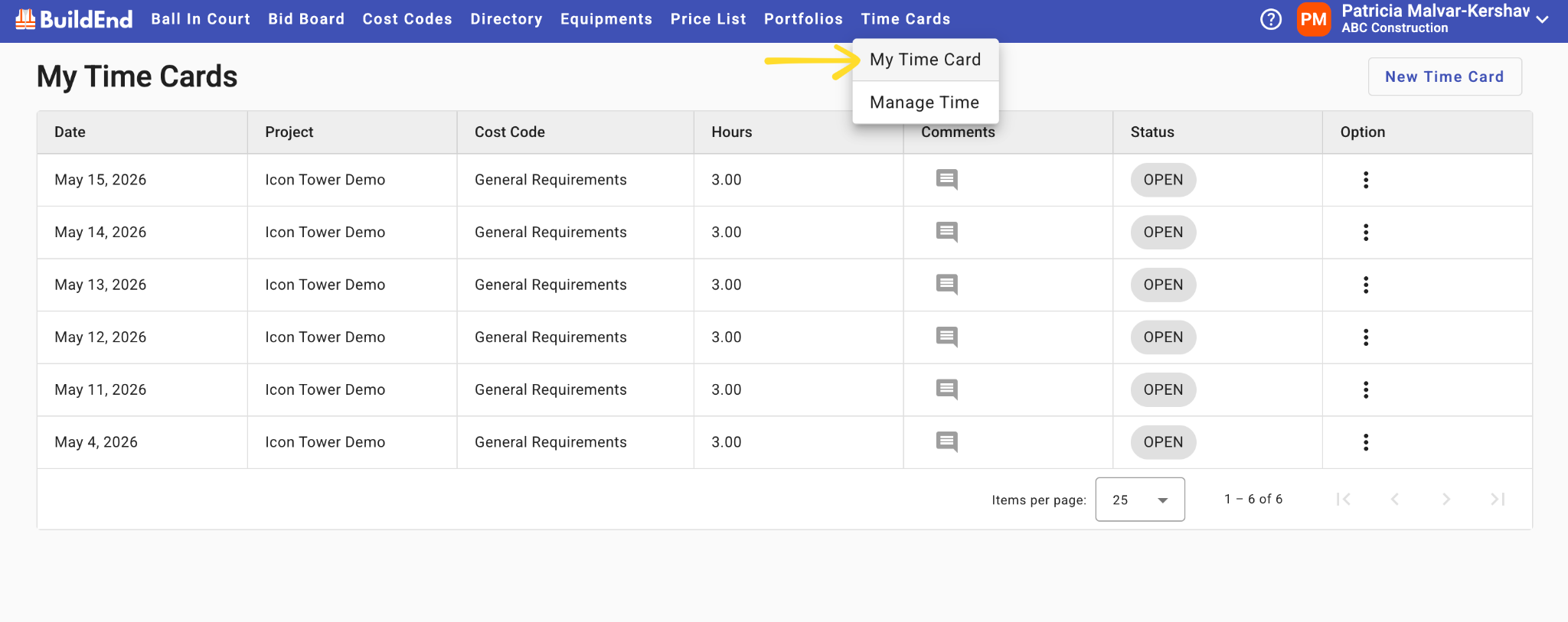
Add a Time Entry
Step-by-Step Guide
- Navigate to My Time Card
- Click New Time Card
- Complete the fields
- Date – The day the work was completed
- Project – The project the time is being tracked to
- Job – The task or work being performed
- Cost Code – Used for financial tracking and reporting
- Hours – Time worked
- Comments (optional) – Additional context about the work completed
- Click Submit to save your work
⚫ There are two formats available to enter time:
- Start/End Time (for example, 9:30 AM–10:30 AM)
- Total number of hours (for example, 3 hours).
This is configured during implementation based on your organization’s preferences.
If this setting needs to be updated later, contact the Buildend support team for assistance.
Edit a Time Entry
Step-by-Step Guide
- Navigate to My Time Card
- Locate the entry you want to update
- Open the time entry by clicking Edit under the options menu (⋯).
- Update the necessary information
- Save your changes
Important: Only entries in the Open status can be edited.
Delete a Time Entry
Step-by-Step Guide
- Navigate to My Time Card
- Locate the entry you want to remove
- Open the entry options menu
- Click Delete
Important: Only entries in the Open status can be deleted.
Training Video
🚧 Coming Soon: This content is in progress and will be updated soon.
Adding Multiple Time Entries
In some cases, you may need to enter time for multiple activities or projects.
This can easily be accomplished in the add screen. Clicking on "Add Another Entry" will add new rows to submit multiple entries at the same time.
- Add multiple entries without leaving the screen
- Enter separate time blocks for different tasks on the same day
Time Entry Lifecycle
For more information on how these actions affect the Time Entry Lifecycle, see the related articles section for content that goes more into detail.
Best Practices
- Submit time entries regularly
- Review hours and project selections before submitting
- Include comments when additional context is required
Still Need Help?
Not to worry! If you’re having trouble completing these steps or something isn’t working as expected, reach out to our support team at support@buildend.com ✌️