
Assigning a Project Team Role
Project > Project Settings > Project Team Roles
After a user has been added to a project, assign them a Project Team Role to define their workflow responsibilities.
Table of Contents
Overview
Users who will participate in project workflows should be assigned a Project Team Role that reflects their responsibilities.
Before a Project Team Role can be assigned, the user must first be added to the project with the appropriate Project Permissions.
Once assigned, Buildend uses the Project Team Role to automatically route workflow assignments to the appropriate users.
📝 Note:
If the Project Team Role you need isn't available, it can be created through Settings > Data Objects. Creating and managing Project Team Roles requires the appropriate permissions. Check with your Buildend Administrator if you need this access enabled.
Step-by-Step Guide
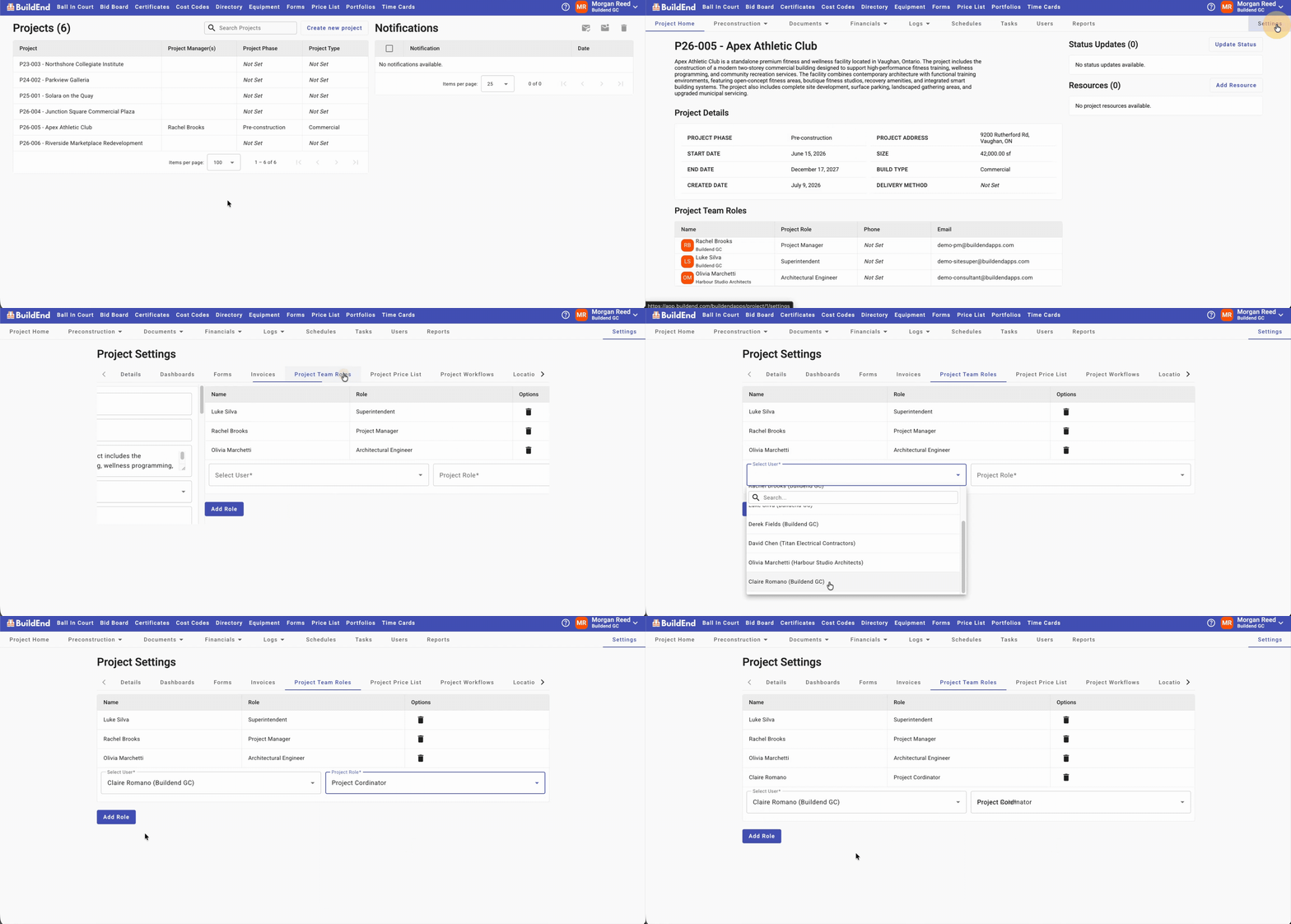
- Open the project.
- Go to Project Settings, then select the Project Team Roles tab.
- Select the user you want to assign a role to.
- Choose the appropriate Project Team Role that you want to assign to them.
- Click "Add Role" to save your changes. You'll see it added to the table automatically.
The user will now receive workflow assignments based on their assigned Project Team Role.
Action Clip
Best Practices
- Assign roles to users who will receive workflow assignments.
- Choose the role that best reflects each user's responsibilities.
- Review assignments whenever project responsibilities change.