
Managing Project Team Roles
Project > Project Settings > Project Team Roles
Update Project Team Roles as project teams and responsibilities change throughout the life of a project.
Table of Contents
- Overview
- Common Scenarios
- Removing a Project Team Role
- Reassigning Project Responsibilities
- Best Practices
Overview
Project Team Roles should be updated whenever project responsibilities change.
As project teams evolve, users may join, leave the project, change responsibilities, or be replaced. Keeping Project Team Roles current ensures future workflow assignments continue to be routed to the appropriate people without changing the workflow itself.
Common Scenarios
You may need to update Project Team Roles when:
- A Project Manager, Superintendent, or other team member changes.
- A team member leaves the company or project.
- A new team member takes over an existing role.
- Temporary coverage is required during vacation or leave.
- A consultant, vendor, or other collaborator is no longer involved with the project.
Removing a Project Team Role
If a user no longer participates in project workflows, remove their Project Team Role to stop future assignments from being routed to them.
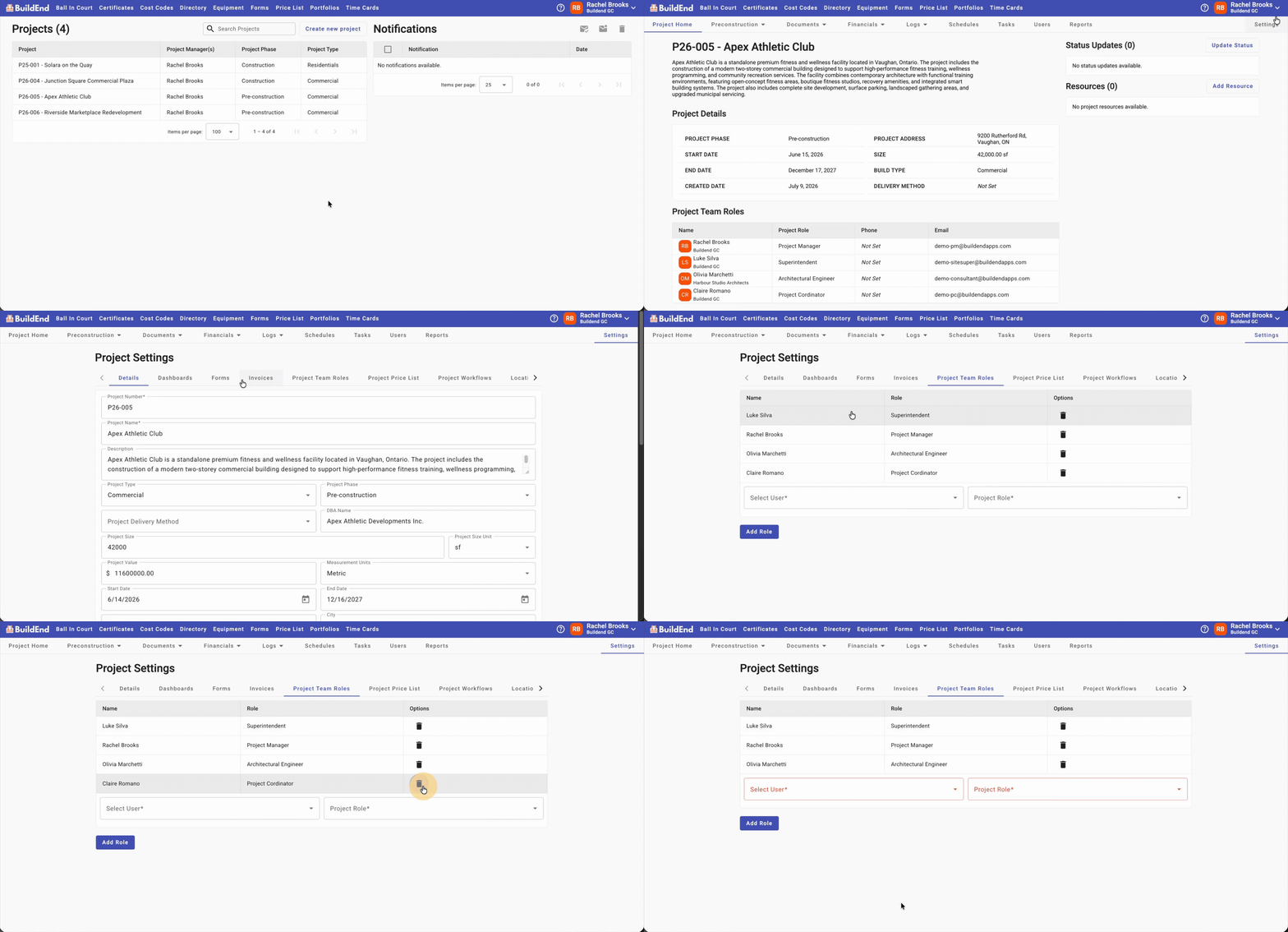
Step-by-Step Guide
- Open the project.
- Go to Project Settings, then select the Project Team Roles tab.
- Find the user you want to update in the table.
- Click the Delete (🗑️ ) icon in the Options column. The role is removed immediately.
The user will no longer receive future workflow assignments for that role.
Action Clip
Reassigning Project Responsibilities
In many cases, removing a Project Team Role is only part of the process. When another team member takes over those responsibilities, assign the role to the incoming user before removing it from the previous user.
Example:
- A new Project Manager joins the project.
- Assign them the Project Manager role.
- Remove the role from the previous Project Manager.
- Future workflow assignments are automatically routed to the new responsible person.
📝 Note:
Review any active workflow items whenever project responsibilities change to ensure work remains assigned to the appropriate people.
Best Practices
- Update role assignments as soon as project responsibilities change.
- Assign replacement team members before removing outgoing users whenever possible.
- Review active workflow items after project staffing changes.
- Keep role assignments aligned with each user's current responsibilities.