
Removing a User from a Project
Project > Users
Remove a user from a project when they no longer require access to project information or are no longer involved with the project.
Table of Contents
Overview
As project team members change throughout the life of a project, users may no longer require access to certain projects.
Removing a user from a project immediately removes their visibility and access to that project while keeping their Buildend user account available for other projects within your workspace.
📝 Note: Removing a user from a project does not delete or deactivate their Buildend account. They can continue accessing other projects they have been assigned to.
Step-by-Step Guide
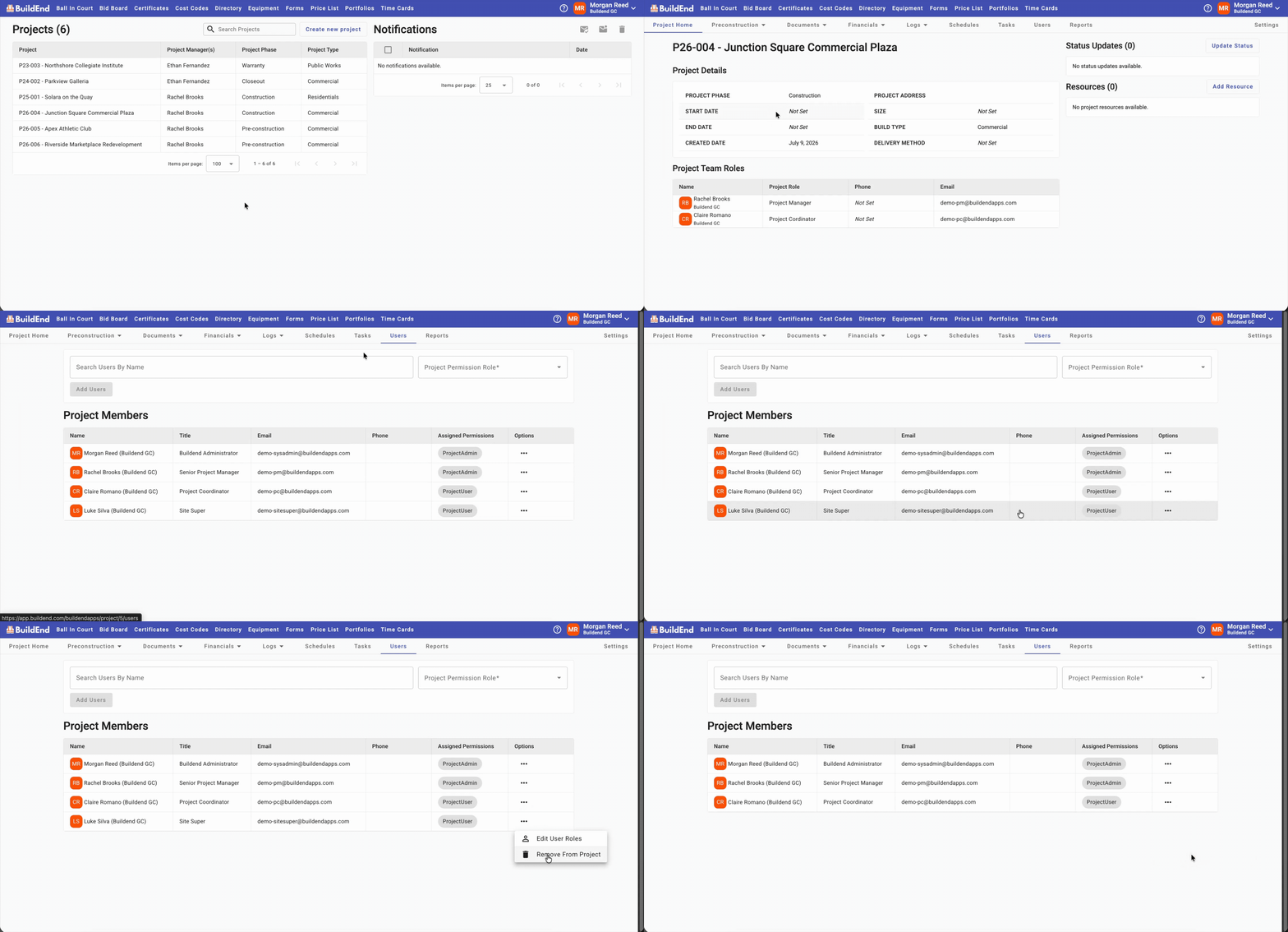
- Open the project.
- Go to the Users tab.
- Find the user you want to remove in the table.
- Click the ellipsis (⋯) in the Options column, then select Remove from Project.
The user is removed immediately and no longer has access to the project.
Action Clip
📝 Note
Don't forget: If another team member is taking over this user's workflow responsibilities, assign the Project Team Role to the new team member before removing it from the previous user. This helps ensure future workflow assignments continue to be routed to the correct person.
Learn more: Managing Project Team Roles
Still need help?
Not to worry! If you’re having trouble completing these steps or something isn’t working as expected, reach out to our support team at support@buildend.com ✌️